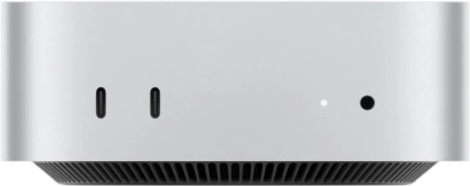
Mac Mini M4
Cloud Computing at Your Fingertips
Perfect for iOS CI/CD, cloud rendering, and AI inference.
Why Choose RunMini?
Powerful performance, flexible config, ultimate experience
Powerful M4 Chip
Powered by the latest M4 chip, 3nm process, leading the industry in single-core performance.
Thunderbolt 5 Interconnect
Supports Thunderbolt 5 physical parallel connection with up to 80Gbps bandwidth to build supercomputing clusters.
High-speed Global Network
Access to CN2 GIA / AS9929 high-end lines, 1Gbps dedicated bandwidth, low-latency global coverage.
Rapid Delivery
Automated setup system, rapid delivery after payment, start cloud development immediately.
Flexible Rental Plans
Choose on demand, upgrade anytime
Click "Configure Now" to add value-added services like SSD expansion and Thunderbolt 5 parallel connection
Mac Mini M4
16GB / 256GB SSD
Mac Mini M4
24GB / 512GB SSD
Why Choose Us
Professional service, reliable guarantee
Excellent Infrastructure
-
Singapore: The first choice for serving Southeast Asia and Australia users
-
Hong Kong: Low-latency connection to mainland China and East Asia
-
US West: Direct connection to North America, global backbone network coverage
Usage Scenarios
Multiple application scenarios to meet your different needs
CI/CD Continuous Integration
Build automated test and deployment pipelines for iOS and macOS apps, supporting Xcode Cloud, Jenkins, GitHub Actions, and other major CI/CD tools.
-
Xcode Build & Test
-
Automated Unit Testing
-
App Signing & Distribution
Cloud Rendering & Computing
Leverage the powerful GPU performance of the M4 chip for high-performance computing tasks such as video rendering, 3D modeling, and AI inference.
-
Video Encoding & Transcoding
-
3D Scene Rendering
-
Machine Learning Inference
Remote Development Environment
Set up your exclusive macOS development environment with remote desktop access, develop iOS and macOS apps anywhere, anytime.
-
Remote Desktop Connection
-
Xcode Development & Debugging
-
Multi-device Collaborative Development
Service Guarantee
Comprehensive technical support and service
99.9% Availability Guarantee
We promise 99.9% service availability to ensure your business continuity. If not met, we will refund the service fee proportionally.
24/7 Technical Support
Professional tech support team online 24/7, responding quickly through the ticket system, average response time < 1 hour.
Data Security
All data is stored with encryption, backed up automatically and regularly, supporting snapshot functions to ensure your data is secure and worry-free.
Rapid Delivery
Fully automated deployment system, rapid delivery after payment, immediate use.
FAQ
Are Mac servers physical machines or virtual machines?
All Mac servers we provide are real physical devices, each with Apple original hardware. You will have full hardware access, including CPU, memory, storage, and all other resources, ensuring zero performance loss. This is completely different from virtualized environments; you can enjoy all the features and performance of the native Mac system.
How long after ordering can I start using it?
For standard configuration devices, after you complete payment, the fully automated setup system will complete device configuration and system initialization within minutes, and send login information to your registered email. The automated setup system ensures rapid delivery, allowing you to start cloud development instantly. If you choose a custom configuration (such as extra storage space, special software installation, etc.), it may take longer. You can view the device opening progress in real-time on the order page in the console, and we will also notify you via email.
How to connect to the server via SSH?
SSH connection is the standard way to access the command-line interface of a Mac server. After logging into the console, go to the 'My Devices' page, click on the device card to enter the details page, and you can view the SSH connection info, including IP address, port number, and login credentials. Use a terminal or SSH client (such as PuTTY, Terminal, or iTerm2) and execute the command: ssh username@your-ip-address, then enter your password to establish a secure connection. We recommend using SSH key authentication for better security, which can be configured on the device details page.
How to remotely access the device via VNC?
You can remotely access the graphical interface of your Mac device via the VNC (Virtual Network Computing) protocol. After logging into the console, go to the 'My Devices' page, click on the device card to enter the details page, and find the 'VNC Connect' button. The system will generate a secure connection address and temporary password for you. Use any VNC client (such as RealVNC, TightVNC, or the built-in Screen Sharing on macOS) to enter these details and establish a connection. The connection uses encrypted transmission to ensure remote access security. VNC passwords are updated periodically; please get the latest password from the console.
How to get help if I encounter issues?
We offer several ways to provide support. You can contact customer service through the console, describing the issue in detail, and our tech team will respond promptly. For urgent technical issues, we provide 24/7 online support. You can also get our business cooperation email from the bottom of the page. Additionally, the Help Center provides detailed usage docs and FAQs, where most questions can be resolved. We recommend checking the Help Center before contacting support for a faster solution.